Tuesday, March 25, 2008

Decrypt the stored procedure, and etc

When you try to hide something from someone, people always have their own way to dig it out. Just like you thought 128-bit encryption is un-decryptable, especially on symmetric encryption , people still can know you initialization vector (IV) by de-compiling your source-code using deflector, if you did not obfuscate it (Oops, or even obfuscation is not safe too?). Then all your effort on encryption/information-hiding is wasted. Same goes to MSSQL 2000 built-in encryption for stored procedures (SPs/sprocs), etc.

The syntax for MSSQL 2000 built-in encryption on CREATE PROCEDURE is:

CREATE PROC [ EDURE ] procedure_name [ ; number ]
[ { @parameter data_type }
[ VARYING ] [ = default ] [ OUTPUT ]
] [ ,...n ]
[ WITH
{ RECOMPILE ENCRYPTION RECOMPILE , ENCRYPTION } ]
[ FOR REPLICATION ]
AS sql_statement [ ...n ]

To decrypt it, for novice user, you can download the freeware (Unless you wanna pay the money for this software?) called "dSQLSRVD", just log in and find those SPs with checkboxes checked, highlight it and click "Save", you can get the content of the stored procedure you desire. Easy, huh?


For average developer, maybe you can go to this site (please take note this method seems have limitation on the size of nvarchar(4000), you might need to roll back if your encrypted SP is long), or this site, and try to come out your version of freeware, though you can find a ready-made workable sql script if through a thorough search.

Final piece, Windows applications is too common and thus make it too popular for developers to crack it. You better depend on your own.

p/s: In MSSQL 2005, there's few new features added,
1) EncryptByAsymKey
2) EncryptByCert
3) EncryptByKey
maybe it's worth for try.

Sunday, March 2, 2008

Resize the virtual harddisk size (2) : expand C-drive

From last week, I expanded the hard-disk size successfully. But I am not satisfied with the end result, what if I just want to expand the main primary partition (aka C drive), not adding another secondary partition?

I found the PartitionMagic and it seems able to do the job by merging the partitions, but it is not free. I need a free software to achieve that and I found GParted. Since it's used mainly for *nix environment, I knew it not gonna be user-friendly. There's not executable files for you to run it on Windows. Lucky, the liveCD is designed to solve this problem across the platform.

So, here are the steps to merge the partitions using GParted:

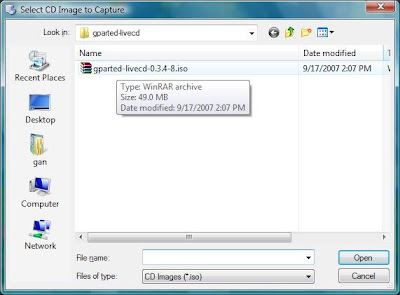
1) Capture the GParted liveCD iso image from the Virtual PC Console.


2) Reboot the OS.


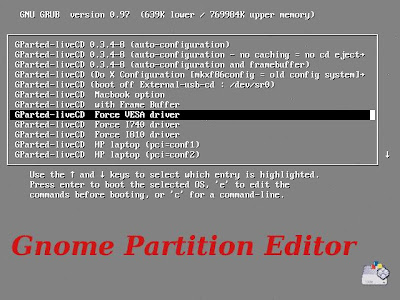
3) After reboot, the Gnome Partition Editor will be loaded. Select the "GParted-liveCD Force VESA Driver" (If you have problem on "GParted-liveCD XXX (auto-configuration)", you better select this one, how do you know? Your screen will totally blank later.)"

4) You will be asked to key-in the keymap twice. Hit enter to proceed.
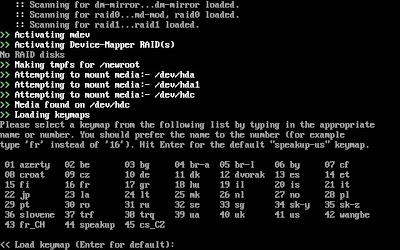
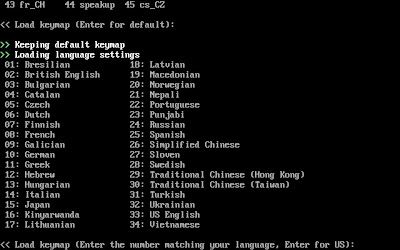

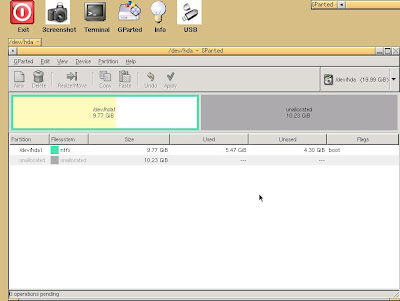
5) Now the main app will load. Since there is some reading problem on the PS/2 mouse, you would not be able to use the mouse. Quoted from Arcane Code:
"First, let me take a second to explain what the issue is. There was a bug in the kernel code that affected many different distros of Linux. Apparently the kernel was not finding PS/2 style mice. Some work has been done and now most PS/2 style mice are now being found.
Except, sadly for the ones being emulated. Both VMWare and VirtualPC emulate a PS/2 style mouse, and are not getting found by the kernel. Remember, it doesn’t matter what type of mouse you have hooked up to the host box (I have two mice, a Logitech MediaPlay and Microsoft Travel mouse, both USB). It only matters what the virtual machine is telling the guest OS (Ubuntu), which is PS/2 style mouse."
Now you have to go back to old day practice : using keyboard.


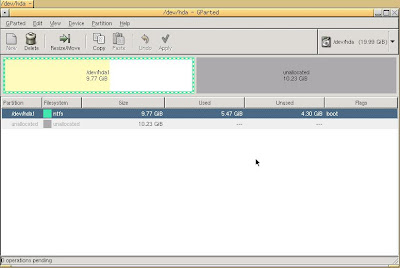
6) Press "Tab" key until the main drive is selected. You will know when the row is highlighted.

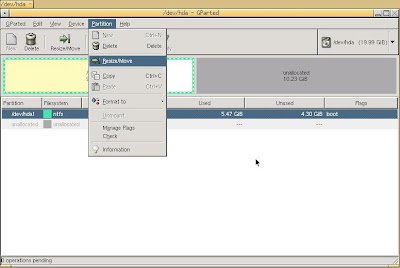
7) Now press "Alt-P" and "Down" arrow key to select the "Resize/Move" menu.

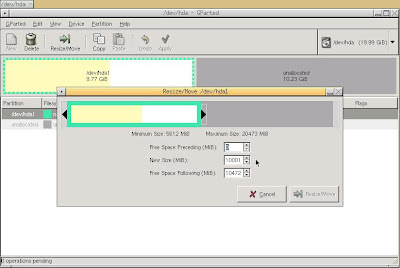
8) Leave the "Free Spacing Preceding" and key-in how much size you want to expand in "New Size" textbox. The "Resize/Move" button will be enabled once you made changes. Use "Tab" to move the focus to "Resize/Move" button and hit "Enter".

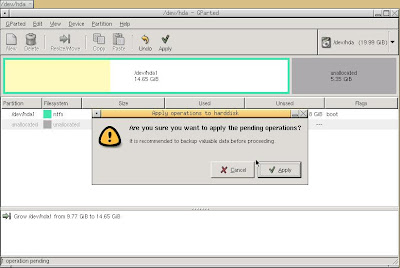
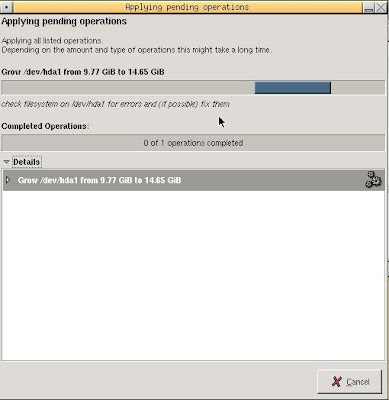
9) Use "Alt-E" and "Down" arrow key to select the "Apply All Operations". Partition merging will be started.
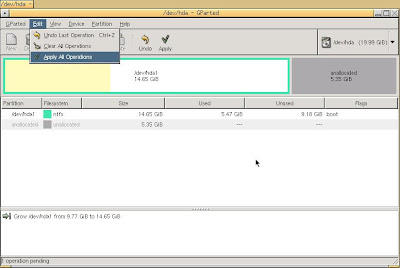


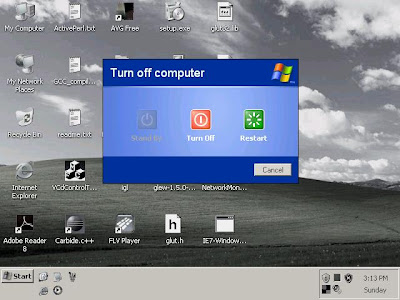
10) Once it's done, turn-off the Virtual PC and reboot.
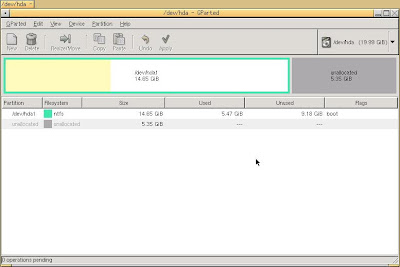
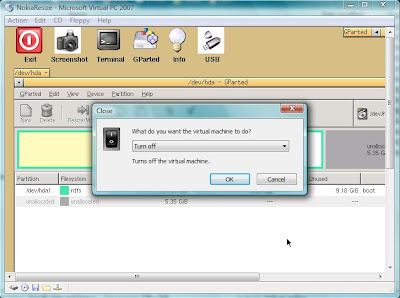

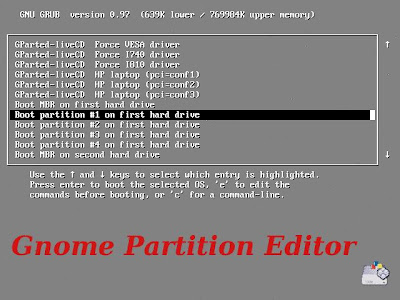
11) This time, select "Boot partition #1 on the first hard drive". (You need to scroll down if you did not see it from the Gnome Partition Editor.
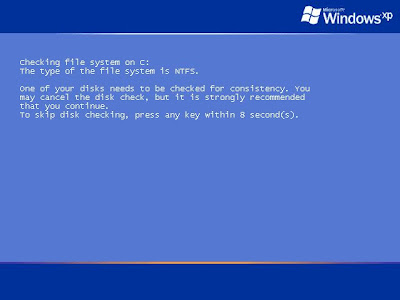
12) Windows will load and check for the disk consistency. Let it do the dirty job and it will reboot twice.

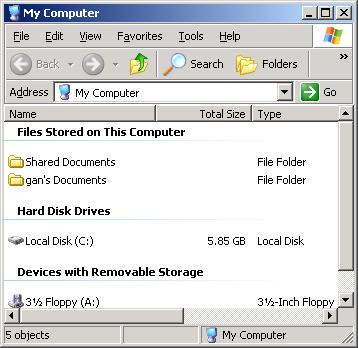
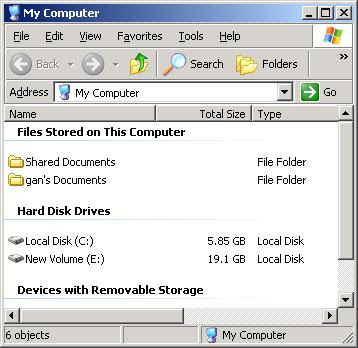
13) Eventually, the partition merge is done and now you will see the extra hard-disk space increase on the main primary partition. (You might need to release the iso image captured on step 1 after done)

Here's the link where you can capture the screen-shoot on VPC.
Thursday, February 28, 2008

Resize the virtual harddisk size

As a developer, I need to test the applications written in different version of Windows OSs, sometimes also need to try out the new beta products, and of course, to run the application without the Vista's UAC. I need to cultivate the environment for simple virus as well (very dangerous for a beginner like me). I like to use Virtual PC since i can get all these advantages.

If the disk space is running out, the virtual OS will keep notifying you to clean up more space. It is quite annoying to clean up the space to move on.With the VHD Resizer, you can add more space to extend the life span of your virtual environment.

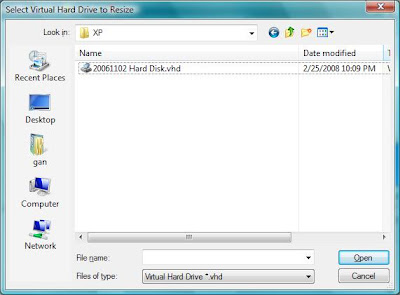
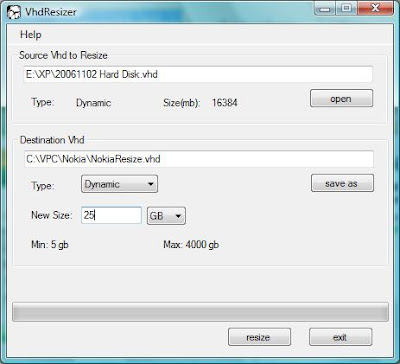
1. After download and install the VHD Resizer, you will be greeted with Open File Dialog:


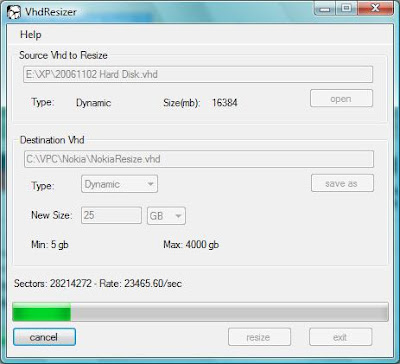
2. then you will come to the VHD Resizer main UI, insert the new vhd file you want with the new file size, the disk space allocation will start.


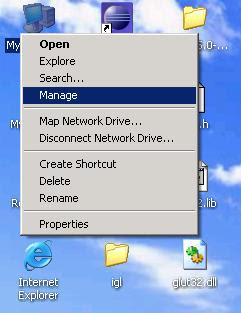
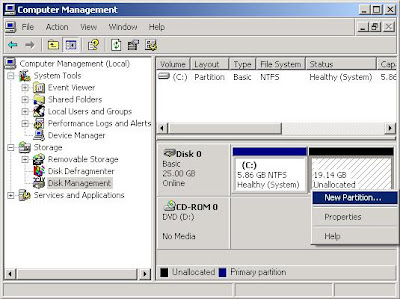
3. After minutes, the allocation will finish. But your job is not done yet. You would not get the result instantly. You need to go to Disk Management and partition the new disk space.


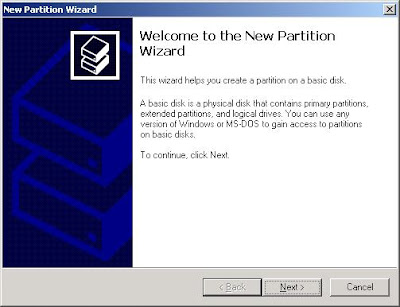
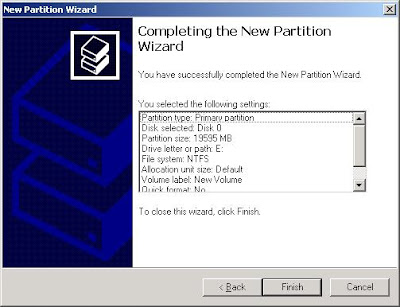
4. You will be greeted another wizard : New Partition Wizard. Use the default values for each settings.


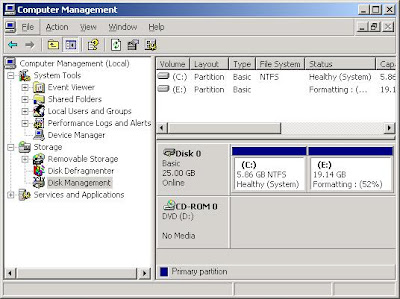
5. The disk formatting will be completed fast and easily.


6. The actual file size for the vhd resized is not increased tremendously, I think 70 MB is used for partition the disk space, since later the hard disk space will expand dynamically.

7. Done. You will be freed from the virtual disk space problem!

Monday, February 18, 2008

Little Update for C# Clock widget

Several months after posting the C# Clock widget on CodeProject, finally I managed to add some useful features into it. There are:

1) Customizable/Load and save user settings. User will be able to customize the application based on the feature they like, and it will load also on every start. In this case, the color of the hands and alarm message. (Part of the UI design refers from CodingForFun)


2) Localization, although it will no longer standalone (it will need satellite assemblies for localization). Currently it supports english and simplified chinese, other locales will fall back the english version though.


3) Alarm. User can enable the alarm so that this widget will notify the user on certain occasion.

4) Call the system clock. This is a context-menu to summon the system clock, maybe it's redundant, since user can by-pass it through the taskbar

You can get the source-code and installer here.

Monday, February 4, 2008

550: Access is denied. Why cannot delete files on FTP server?

FTP is quite popular for transfering the large files since old days. One of the problem that I face previously is this: 550 (foo.txt) : Access is denied, when issuing a delete command from application on client side.

After looking the setting level for the FTP at IIS, I found the user has the right to read/write, but this problem still happens on issuing a delete command. I wonder what went wrong???


A check on the file properties on the server side, I found this file has a read-only attribute!

By modifying the attribute, the delete command is able to delete the file again. I think the application on client side does not have the ability to check the file's attribute, at least for Windows FTP service (Unix should have such ability, using: ls -l ). So the workout is the server side must set the attribute implicitly, through FileAttributes Enumeration.