Here're some overview:
- Democratizing Application Lifecycle Management
- Enabling emerging trends
- Inspiring developer delight
- Riding the next generation platform wave.
(Following image is external link)


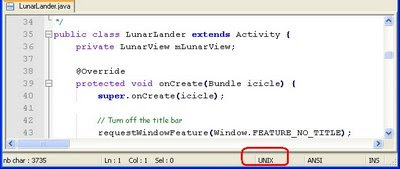 when you open it using Notepad++, it's well-formatted
A normal ASP .NET with its HTML source

Copy the content to Notepad++

Decode it to base64, you can see your state retained
c) Determine Byte-Order-Mark of a file, whether it's saved in following formats: UTF-8, UTF-16, UTF-16 (LE), UTF-32 (BE), UTF-32 (LE), UTF-7, UTF-1, UTF-EBCDIC, SCSU, BOCU-1. And it's exactly .Net method GetPreamble trying to do.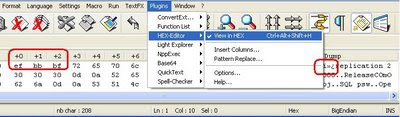
Did you see extra three bytes ahead your file content?
d) it's lightweight, unlike Visual Studio IDE, although Noah Coad might beg to differ.
e) Hey! "All I've mentioned above, other editors have the same features as well". Well, simply I like its UI also.
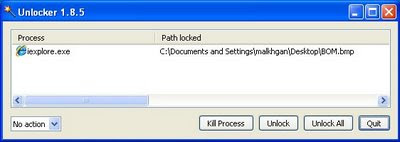 b) When a file get locked by your app, especially using class File.IO to write it without closing the stream properly.
 A .NET exe
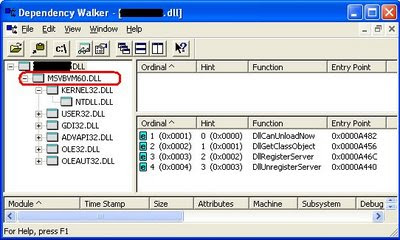
A VB6 dll
b) Of course, find the exe/dll dependencies, as the name implies. When you were in the pre-NET era with only Visual C++/Visual Basic 6 & Package Deployment Wizard, there's no such thing called MSI technology, which can help you to determine most of the dependencies for you.

4) Process Explorer (Language: neutral)
when you need it?
a) When you need to find out what process/apps/service is running secretly. You'll never know your employer have planted a window service for software inventory control on your laptop, until you run it. b) Check the thread state of a stopped thread, probably due to Timeout of Three-Way Handshake in FTP uploading/downloading, when you suppose to have a multi-threaded app run without stopping FTP upload/download.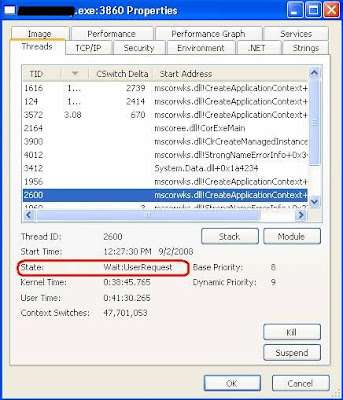
5) Microsoft Network Monitor (Language: neutral)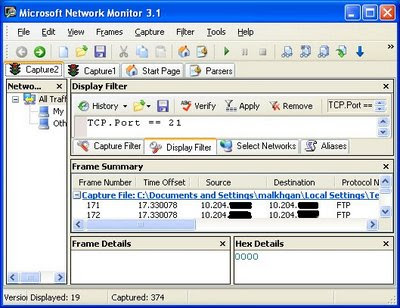
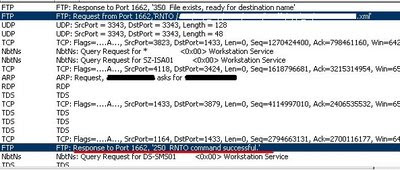
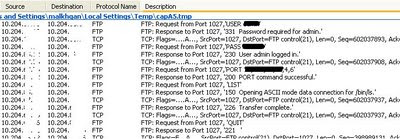
Wow, you can see user-name and password!
6) Reflector (Language: .NET)
when you need it?
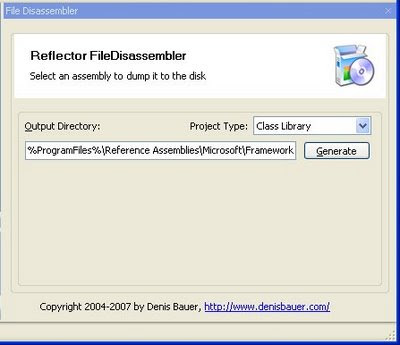
a) When you need to re-generate the source that lost and you do not have any source control previously, with the aid from plug-in, FileDisassembler

7) DebugView (Language: native/.NET)
when you need it?
a) When your app only with issue happens intermittently, you need your app to run in verbose mode using Debug.Print without additional tracer running side-by-side, that might affect the performance, or introduce new bug/maintenance issue. This works well for native app too, using Win32. 8) 7Z (Language: neutral)
when you need it?
a) It supports most of the commercial format, yet without asking you to purchase every time it loads, eg. WinZip, Winrar. Furthermore, it able to compress more to save your disk-space.
 b) When you need to find out how the zip file is created. Either SharpZipLib or Windows built-in zipping tool; compression method is either DEFLATE, Implode, or Store. You can get the Host OS and CRC as well.
 this zip file is compressed using SharpZipLib with DEFLATE method
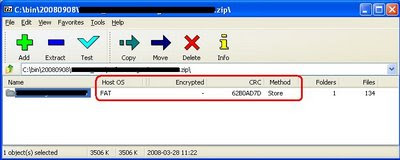 this zip file is compressed using Store method
 this zip file is compressed using Windows built-in zipping tool
9) Microsoft Virtual PC (Language: neutral)
when you need it?
a) When you wish to be beta tester yet you do not want to jeopardize your existing system.
b) When you found virus, and you need to cultivate it in order to trace the originator, so that... counter-hack!
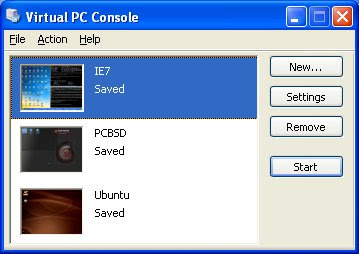
c) When you need to test your web app in different OS. MS has prepared it for you to use it until January, 2009. Flavours available: Windows XP SP3 with IE6 VHD file, Windows XP SP2 with IE7 VHD file, Windows XP SP3 with IE8 Beta 2 VHD file, and Vista Image with IE7 VHD file. (see: Internet Explorer Application Compatibility VPC Image)
d) When you wish to play around with different *-nix OS.


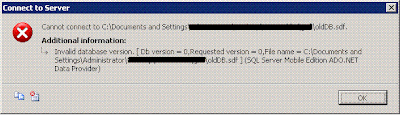 Now I will show you how to upgrade it within the emulator environment, specifically for OS PPC 2003. It can be done in actual device in the similar way. First, copy all the cabinet files of SQL CE run-time components for SQL CE 2.0 and 3.0 into you emulator, using Windows CE Remote File Viewer. The default location of the SQL CE 2.0 run-time components is C:\Program Files\Microsoft Visual Studio 8\SmartDevices\SDK\SQL Server\Mobile\v2.0\[platform]\[processor] & the default location of the SQL CE 3.0 run-time components is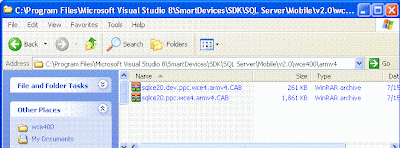
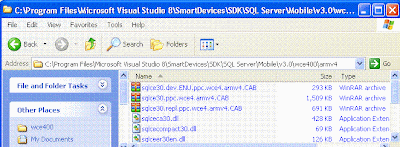 Then you need to download the Pocket Shell in Windows Mobile Developer Power Toys. It is the PPC version of you desktop command prompt. The default location is in C:\Program Files\Windows Mobile Developer Power Toys\PPC_Command_Shell\arm. Copy the console.dll to emulator's \WINDOWS directory and copy the shell to emulator root folder for less programming later.
 viola! (You need to wait a while if your database is huge)
 Try to open it with desktop MSSQL: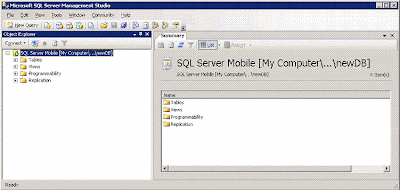
If you have missed any cabinet file during installation (eg. you did not install "sqlce30.rep.ppc.wce4.armv4.cab"), you will get this error message:
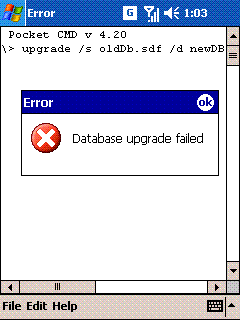 Try to export the upgrade.log file to analyze:
 In this case, you will get: